

Path: Navigation Form > Services button
About
The Billing Log function on the Services Form is a diagnostic tool that displays the status of each background action performed during the Recalc process, including the specific step where a service fails the internal scrub. The Billing Log can be a helpful tool to resolve a Bill Status you aren't sure how to fix.
Turn on the Billing Log
- Navigate to the Service Filters Form by following the path above.
- Use the Bill Status drop-down to select NOT BILLED ONLY.
- Click OK. Services are displayed based on the filters that were set.
- Click the Billing Log (0) button to open the Billing Properties pop-up.
- Click the Logging Is Off button to turn on logging.
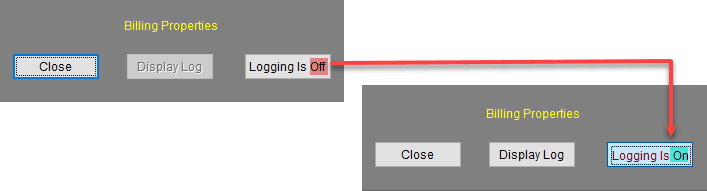
- Click Close to exit the Billing Properties pop-up.
- On the Services Form, click Recalc List or Recalc Selected.
- Reference: Convert Services into Line Items - Recalc
- The number on the Billing Log button should start counting up as the services are recalcing.
- When the Recalc process is finished, open the log by clicking the Billing Log button again, and then click Display Log.
- The Billing Log window opens, displaying a row for each validation check.
|
Note: You can filter further by utilizing the fields in this form, such as by service date range, client, etc. |
|
Warning: Logging is automatically turned back to off when the Services Form is closed. |
Reading the Billing Log
A blank row separates each service. The number of rows per service depends on the number of validations processed before reaching a failure. The failure point is indicated by a blank in the OK column.

In the above example, Case No. 6754 failed on the first validation check: "No insurance records." Whereas, Case No. 956 passed six validation checks before hitting a failure.